
There are many cloud storage solutions available today – and they all offer pretty much the same thing. pCloud aims to stand out from its competitors with Swiss data protection standards and user-friendly terms. But does it succeed?
We thoroughly tested pCloud and compared it with other cloud storage services to help you make your choice.
pCloud* is a Swiss company that runs a cloud storage service of the same name. It lets individuals and businesses safely store, share, and sync their data across devices.
pCloud wants to fill a gap in the market by combining simple, user-friendly operation with a wide range of features. They say other cloud services are “either too technical and not user-friendly” or “not complete enough for users to get everything they want from cloud storage.”
They also focus heavily on security and privacy, claiming to be “Europe’s most secure cloud storage.”
Does pCloud hit the sweet spot between simplicity, functionality, and security? Find out in our review.
-
Strong sync performance
pCloud impressed us in our performance test with fast upload and download speeds and low CPU usage. -
Good prices and 10 GB free storage
pCloud offers more free storage than most providers. Their paid plans are also reasonably priced – and they even offer “lifetime” plans with one-time payments. -
Optional end-to-end encryption
pCloud’s Crypto folder provides a secure storage space with end-to-end encryption for sensitive files.
-
Lack of transparency
While pCloud promotes high security and privacy, they lack transparency. Their company structure is unclear, and they don’t provide transparency reports or independent audits. -
Web app issues
During testing, the web app occasionally froze. The video player also had reliability issues. -
No real-time collaboration
It lacks a built-in document editor for smooth collaboration like Google Drive or OneDrive.
User Interface and Ease of Use
| Platforms ? | All relevant platforms |
4/4
|
| Web Interface ? | Basically intuitive, but during the review, there were frequent hang-ups and other issues. A document editor is missing, the video player didn’t work so well, and there are ads in the free plan. |
2.5/4
|
| Desktop App ? | Feature-rich app, but it makes synchronization unnecessarily complicated. |
2.5/4
|
| Mobile App ? | User-friendly and intuitive, with a scan feature. |
2/3
|
While most cloud storage services opt for minimalist interfaces, pCloud has given its apps more personality. Whether you like this design is a matter of personal taste – we quite enjoy it.
Like all platforms, there are three main ways to access your cloud storage: the web interface, a desktop app, and a mobile app. Let’s take a closer look at each one:
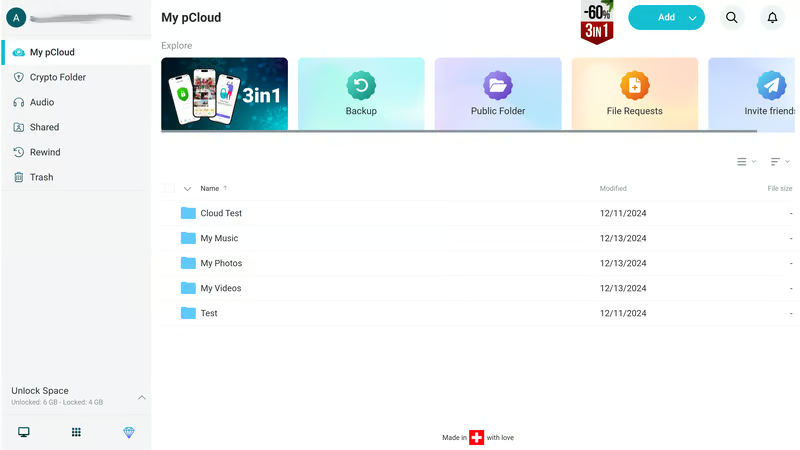
You can access your pCloud storage from any browser using the web interface. All you need are your login details and an internet connection.
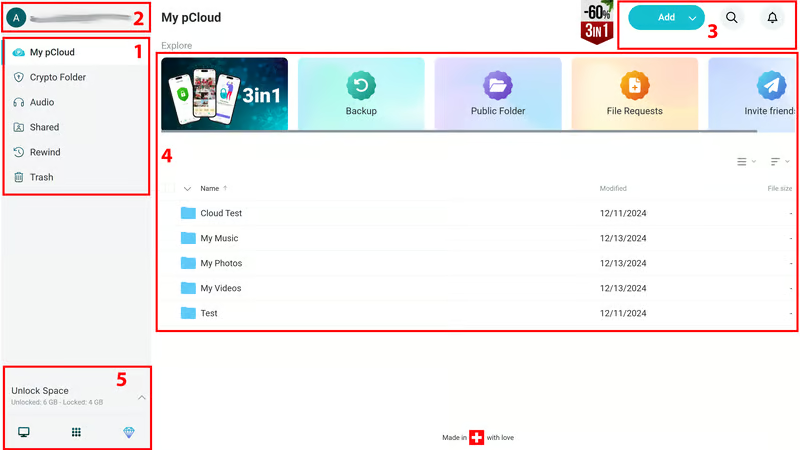
The interface is clean and you can reach all important features with just a few clicks. It’s logically organized into five areas:
-
1.
Main menu: Switch between different areas of your cloud storage here. The “My pCloud” home page shows all your folders and files, with colored tiles at the top for quick access to advanced features.
-
2.
Account: Find settings and a link to the help center in the account menu.
-
3.
Top menu bar: Use the “Add” button to create new folders and files. The search function is right next to it.
-
4.
Main area: View the content of your selected menu, such as your files, shares, or audio files.
-
5.
Apps and upgrades: This area always shows how much storage you’ve used and how much is still available. You can unlock extra storage through upgrades or complete certain actions to increase your available space.
You have plenty of options to display and organize your files and folders. pCloud supports common filtering options (“Name”, “Last modified”, “File size”) and several view options, including grid and list views.
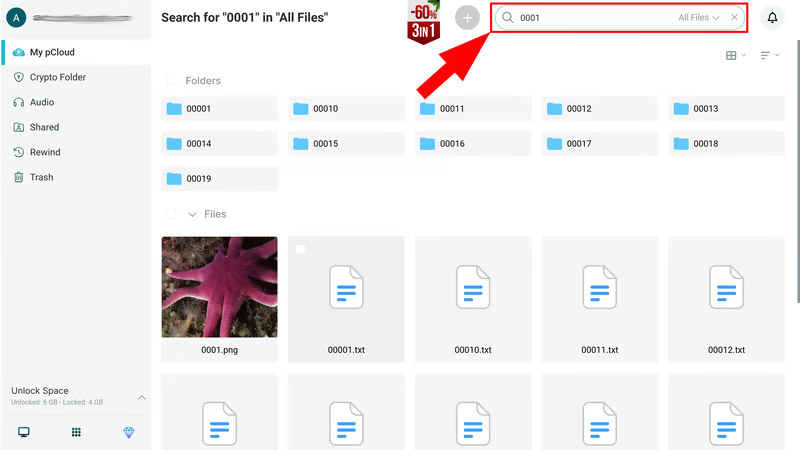
The search feature is solid: It searches your entire cloud storage, not just the files in your current folder. You can also filter your search by file types like images, audio files, or documents. However, the search only looks at file names, not the content of your documents (unlike Google Drive).
Unfortunately, there’s no document editor. Unlike Microsoft OneDrive, Google Drive, or Dropbox, you can’t open and edit Word or Excel files directly in the cloud storage. You can only preview documents and download them for offline editing.
On the bright side, it comes with a built-in audio and video player for streaming media files. Audio files played smoothly, but pCloud struggled with our video test – even with a good internet connection, we couldn’t get smooth playback.
We also ran into some performance issues beyond the video player. Sometimes the pCloud web app would freeze and wouldn’t let us access our folders. Only restarting the app would fix things – at least for a while.
Overall, we like pCloud’s user interface, even though the colorful tiles on the home page and ads in the free plan might look a bit “cheap.” The bigger issue was the performance problems, which got pretty annoying over time.
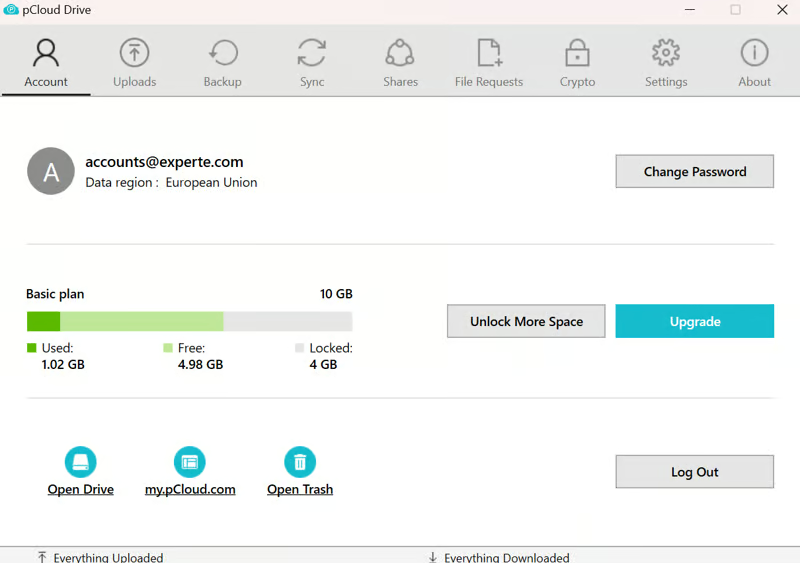
When you install pCloud Drive on your desktop, you can access your cloud folders right from your file manager. During installation, pCloud creates a virtual drive that works as a window to your cloud storage. You can work with your cloud files as if they were on your computer, without taking up any storage space.
Many cloud storage services don’t offer a real desktop app – just a sync tool that handles file synchronization across devices.
While pCloud Drive handles syncing too, it also comes with a feature-rich desktop interface. This makes it easier to use on your computer. You can drag and drop files to upload them to the cloud, manage sharing settings, and even request files from others. The interface may not look as modern as the browser version, but it works well.
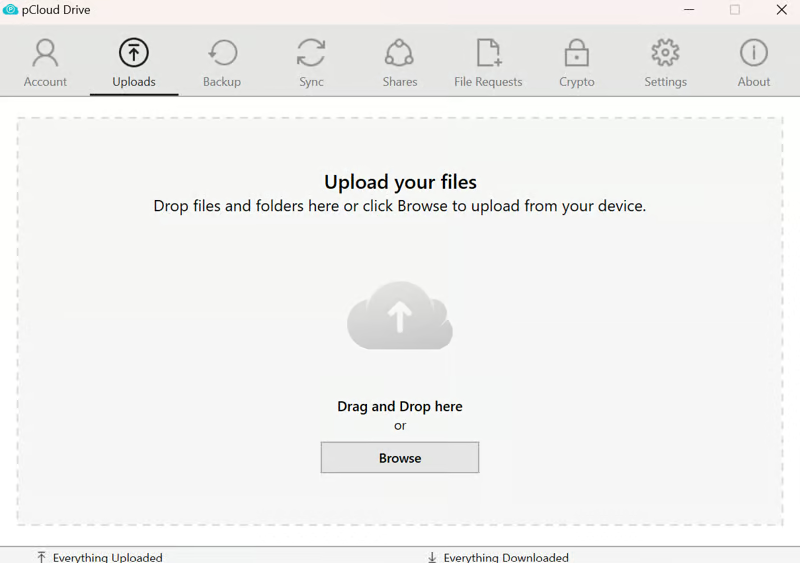
Unfortunately, the app shows that pCloud makes syncing more complicated than other cloud storage services. One reason is that the different sync types aren’t clearly separated (more on this in the next chapter).
There’s also a mobile app so you can access your cloud files on the go. It’s pretty straightforward to use. The home screen has a nice module-based layout that you can customize to some extent. The “Files” section shows all your cloud files in an organized way.
You can set up automatic syncing for photos and videos from your device to the cloud. You can also manually upload photos and scan documents to save them directly to the cloud.
We’ve compiled a list of all platforms where you can use pCloud. Good news for Linux users – there’s a Linux client that, according to users, works just as well as the Windows and macOS apps:
pCloud offers user-friendly interfaces for browser, desktop, and mobile. You can easily access and manage your cloud files across all your devices. You can stream photos and videos directly in the built-in media player. pCloud even supports Linux users.
The desktop app makes file syncing more complicated than it needs to be, and there’s no document editor. During our review, we also ran into annoying performance issues that slow down pCloud’s otherwise good user experience.
With pCloud, you can access your cloud files across devices and sync them between the cloud and your computer. Your file access options depend on which interface you’re using.
File Access and Syncing on the Web
In the web app, you edit your files directly in the cloud. All changes are saved to the cloud file right away and synced with connected local folders.
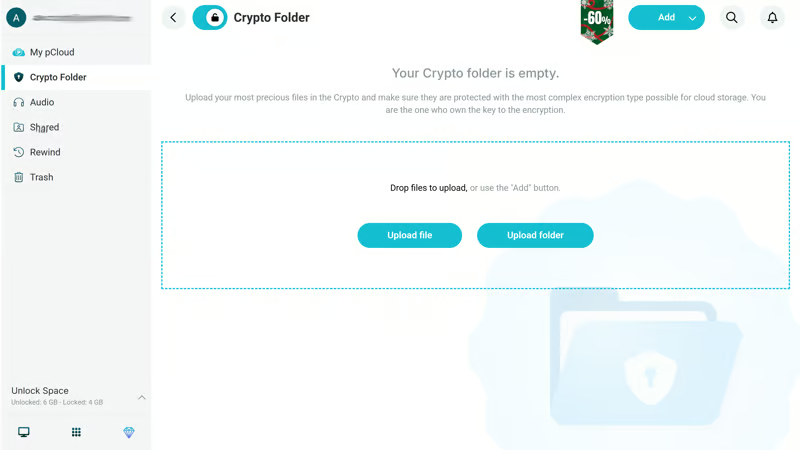
There’s also a Crypto Folder for files that need extra security. Files you move to this folder are encrypted on your device before being uploaded to pCloud’s servers. This is called end-to-end encryption (more on this later).
Encrypted files can only be stored in the cloud and can’t be saved locally or synced. However, you can still access them through the desktop and mobile apps when you’re online.
Desktop Sync: Sync and Offline Access
On your desktop, you can access your pCloud files directly through your virtual drive, which lets you edit files in the cloud right from your file manager.
You can also link local files with your cloud drive. To do this, go to the Sync tab in the app and pick a local folder to sync with a folder in your cloud drive. This creates a two-way sync: when you edit or delete synced files on your computer, these changes will apply to your cloud files too, and vice versa.
The best part is that you can work on your files offline. Your changes will sync automatically once you’re back online.
How Good Is pCloud’s Performance?
For a smooth user experience, it’s important to know how fast and reliable the syncing process is. We measure this using three performance metrics:
To compare providers fairly, we measured these metrics under identical conditions. We created a test folder with the same content for all cloud storage services and synced it from a PC with a 400 Mbps connection (both upload and download). The test folder contained 10,000 files, 10,000 folders, 100 photos (about 500 MB), and one large video file (about 500 MB)
pCloud did really well in our test. Its upload and download speeds were among the fastest of all providers we compared, and CPU usage was solid too. We found pCloud’s syncing to be fast and reliable – and our performance test backs up this experience.
pCloud stands out with strong sync performance and lots of settings options. You can sync specific folders and files between cloud and PC, access them offline, and store selected folders exclusively in the cloud with end-to-end encryption.
However, pCloud could make its sync features a bit simpler and should adjust or rename its backup feature: pCloud isn’t really suitable as a true backup solution.
File Sharing and Collaboration
You can use pCloud by yourself or share your files and folders with others for collaboration. Sharing is user-friendly and available across all pCloud apps – web, desktop, or mobile.
You have two main options:
-
1.
Share link: This option lets you share files and folders with others, even if they don’t have a pCloud account.
-
2.
Invite to folder: You can share folders with other pCloud users. While recipients need a pCloud account, this option gives you more control over access permissions.
Let’s look at both options in detail:
Sharing Files and Folders Using Links
When you click “Share link,” pCloud automatically copies a dynamic link to your selected resource to your clipboard. By default, link recipients can preview the folder and download its contents.
You can customize several link settings, including allowing pCloud users to upload files. You also get link statistics with information about traffic and downloads.
For businesses, the “Branding” setting is particularly useful. It lets you create custom links with your company logo, a personalized cover, and a custom message.
Some options, like password protection and link expiration dates, are only available with premium plans.
Invite Other pCloud Users to Your Folder
If you want to work on documents with other pCloud users, you should share the entire folder. Just enter the email address(es) of the people you want to share with and set their access rights.
There are three user roles:
-
1.
View: Users can preview and download files but can’t edit them.
-
2.
Edit: Members can view, download, add, change, and delete files.
-
3.
Manage (business plans only): Members get admin rights and can invite other people too.
Team management with group permissions, where you can organize your employees into teams, is also available – but only with business plans.
Here’s a comparison of pCloud’s main sharing features:
No Notable Collaboration Features
Don’t expect pCloud to be a full collaboration platform like Google, Microsoft, or Dropbox: It lacks a document editor for real-time collaboration. While there is a comment feature, it’s only available to business plan users.
You can manage your documents together and access them in shared cloud storage. However, you’ll need to work on these documents offline or using other cloud office solutions. Unfortunately, pCloud doesn’t offer integrations with programs like Office 365 or Google Workspace.
Here’s how pCloud’s collaboration features compare:
Modern Security Standards in Regular Storage
Files outside the Crypto Folder in your regular pCloud storage aren’t left unencrypted or unprotected either.
Server-side encryption comes standard here: All files stored in pCloud are secured with 256-bit AES encryption during and after transfer. For data transfer, pCloud uses TLS/SSL channel protection.
While pCloud offers EU servers, make sure to select the European Union as your data region during signup – pCloud also runs servers in the USA..
For security and compliance, pCloud delivers what you’d expect from a cloud storage provider of this size. You can protect your account with two-factor authentication to prevent unauthorized access.
Your data is also protected against loss: Depending on your plan, you can restore file changes within 15 days (free plan) or 30 days (premium plans). You can also add extended file history as an option to restore file changes for up to 365 days.
Lack of Transparency
pCloud promotes Swiss data protection standards. While the company is indeed based in Switzerland, its corporate structure isn’t very clear. According to LinkedIn, most employees seem to be located in Bulgaria.
Bulgaria is an EU country, and there’s nothing wrong with having operations there. Still, as a cloud storage provider asking us to trust them with sensitive data, we’d like to see more transparency about the company’s structure and the people behind it.
Experts agree: The Swiss law firm Steiner Legal dedicated an entire podcast episode to pCloud’s lack of transparency. They also pointed out that despite claiming GDPR compliance, pCloud doesn’t have an EU data protection representative – an official contact point in the EU responsible for ensuring GDPR compliance.
We couldn’t find any transparency reports online, nor recent audits by independent third parties. pCloud doesn’t share its application source code, and detailed whitepapers about their technology are missing too.
Instead, the company seems to prefer showmanship: They ran an “Encryption Hacking Challenge” offering $100,000 to anyone who could crack their client-side encryption system – no one won.
